Print Storage Bin Labels

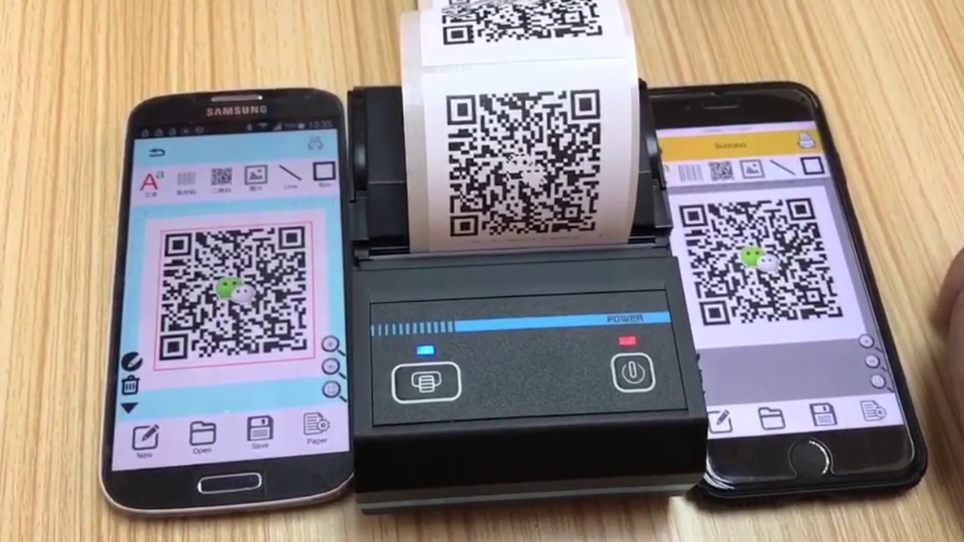

Print Storage Bin label
This blog states the print warehouse storage bin label in SAP EWM.
In a modern warehouse, speed and accuracy matter more than ever. One small but powerful improvement you can make in SAP EWM is printing storage bin labels with QR codes. When implemented correctly, QR-enabled bin labels reduce manual entry, speed up confirmations, and significantly improve inventory accuracy.
Why use OR codes on storage bin labels?
Traditional bin labels rely on human-readable text. While useful, they still require manual scanning or typing. QR codes bring several advantages:
Fast scanning with an RF or a mobile device
Reduce manual errors during put-away and picking
Faster warehouse operation
Easy integration with RF transactions like picking, replenishment, and physical inventory.
In SAP EWM, QR codes are used especially when combined with RF framework or Fiori warehouse apps.
What should the QR codes contain?
We need to decide first what data the QR code should hold. Need to keep it short and meaning full.
Common choices
Storage bin only
CSS
A-01-02-03
Warehouse + Storage bin
CSS
WH01-A-01-02-03
Custom concatenation
WHO1h|AISLE01|BIN003
Best practice: Avoid long strings or special characters. Short values can be faster and more reliable.
Label printing options in SAP EWM
SAP EWM supports multiple label technologies. The most common are:
1. ADOBE Forms (Recommended)
Native QR code support
High-quality output
Easy layout control
Ideal for S/4HANA EWM
2. SMART form
Still used in many systems
QR support depends on device type and bar code configuration
Less flexible than Adobe Form
High-level solution architecture
Here is how the solution fits together:
1. Storage bin data
Bin details are stored in /SCWM/LAGP
2. Print program driver
Reads bin data and prepares the QR value.
3. Label Form (Adobe/ Smart form)
Displays
Storage bin text
Warehouse number
QR code

Printer configuration
ZEBRA or PDF printer prints the label
Creating the storage bin label form (Adobe form)
Step1: Copy a standard form
Transaction
nginx
SFP
Copy a standard EWM label (example)
swift
/SCWM/ADHU_LABEL
Create your custom form
Nginx
Z_EWM_BIN_LABEL
Step 2: Add the QR code
Inside the Adobe form
Insert a barcode object
Barcode type
CSS
QR code
Behind it to a variable such as
nginx
QR_BIN_VALUE
Barcode settings
Error correction: M
Module size: Auto
Character set: UTF-8
Step 3: Prepare QR data in the print program
abap
DATA lv_qr_value_ type string
Lv_qr_value = |{ ls_lagp-lagnum }-{ ls_lagp_lgpla }|.
Assigning the label in EWM customization
Configure label determination
swift
/SCWM/PRTSET
Or
swift
/SCWM/PRTDET
Define
Warehouse number
Print profile
Printer
Form: Z_EWM_BIN_LABEL
This allows SAP EWM to determine the correct label automatically

Print storage bin label

Step1: Enter warehouse number, storage type, printer, and form name, select radio button, storage bin (LGPLA), and execute.

Step 2: Save


Step 3: Display print


Conclusion
The above steps need to be followed to configure the storage bin label
Credit
Writing this blog was inspired by Sastrageek's Gurukul and Internship programs.
Rajesh Sharma
SAP WM/EWM Functional Consultant
§ Linked in profile: https://www.linkedin.com/in/rajesh-sharma-204910278/
§ Twitter: RajeshS98151512/ RAJESH SHARMA@RAJESHS21287609
§ SAP Blogs: https://www.sastrageek.com/blog


Been using Pico Image for a while now for resizing and compressing images. It runs entirely in the browser so nothing gets uploaded to a server, which I find reassuring. Background removal works pretty well too, saves me from opening heavier software for simple tasks.
top.
@blocky blast: The instructions for printing storage bin labels in SAP EWM are clear, helping to optimize barcode scanning and improve inventory management accuracy.
Great